BLOG
How I Automated a Daily HTML Job Digest; and Made It Render Perfectly in Gmail with cloudHQ
Jul 13, 2026
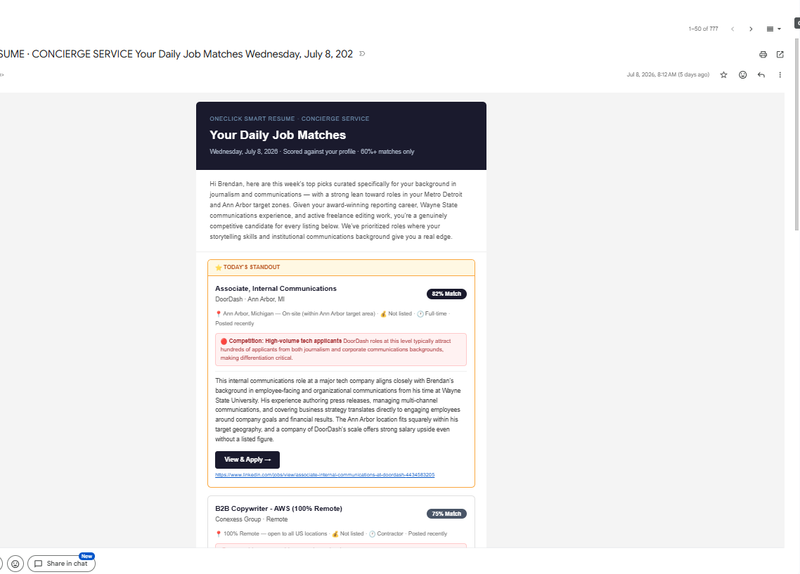
I built a fully automated daily job-matching digest for my concierge clients, complete with real resume scoring, freshness checks, and verified apply links. The scoring engine wasn't the hard part. Getting a styled HTML email to actually render in Gmail was, until cloudHQ's Gmail HTML Editor fixed it for good. Sixty emails sent in a month, zero bugs.
The Goal
I offer a concierge service in which I curate a list of jobs for my clients every morning. I then send this list out to them Monday through Friday. It is not so pretty if it is just plain text, so I wanted to be certain it looked good with the company logo/brand colors. Each entry is not just a job title and link, it includes a complete match score against their profile, a quick note on why it is a strong fit, and practical details (location, pay range, remote/hybrid) verified and current, since scam and ghost job listings are more common than most people realize, and I don't want to hand a client a job that isn't even real. That is the part that makes it feel like a concierge service, instead of a job board digest. I spent a lot of time building the HTML for this to make it look presentable, but when I paste that code into Gmail, it doesn't render at all.
What Kept Breaking
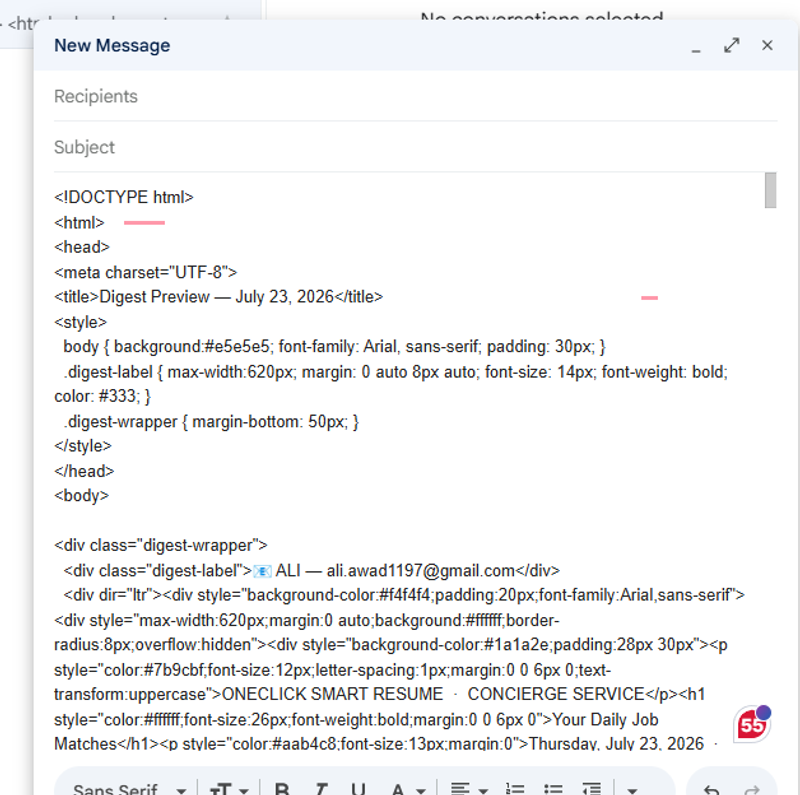
Gmail's native compose window doesn't accept raw HTML. Once I paste that into the compose window, I get just raw HTML code. Not pleasant for a paying client. If I use the Google API, it strips out everything I marked up and generally renders it as markdown. Again, it was very difficult for someone to read, and it was not professional-looking for a paying client.
I needed something that would let me paste real HTML, inline CSS, table-based layout, the works, directly into a Gmail compose window and have it actually render.
The Fix: cloudHQ Gmail HTML Editor
I looked at a few lesser-known extensions before landing on the cloudHQ Gmail HTML Editor. cloudHQ has been around long enough and is trusted by other tools I already use, so I wasn't worried about giving it access to my Gmail compose flow, which matters when you're sending client-facing email daily.
Exactly How I Use the cloudHQ Gmail HTML Editor
Here's my actual day-to-day workflow:
- Install: First thing I had to install the "cloudHQ Gmail HTML Editor" from the Chrome Web Store and pin it to the toolbar.
- Prep the HTML: My digest generator exports the day's HTML template with inlined CSS, a table-based layout, and web-safe fonts so it survives Gmail's rendering quirks.
- Open Gmail: and then I click Compose.
- Launch the editor: I then click the cloudHQ Gmail HTML Editor icon in the compose toolbar.
- Paste HTML: Paste the full HTML source, then click Render/Preview.
- Verify styling: Check the header, accent colors, job cards, and buttons, and confirm it holds up on mobile.
- Test send: To test the results, I sent a copy to my own inbox first to confirm that nothing was stripped from my original HTML code.
- Final send: I then get ready to send the digest to my client list.
- Track: Note any rendering issues. Over roughly 60 sends in a month, I've had zero formatting bugs.
Results
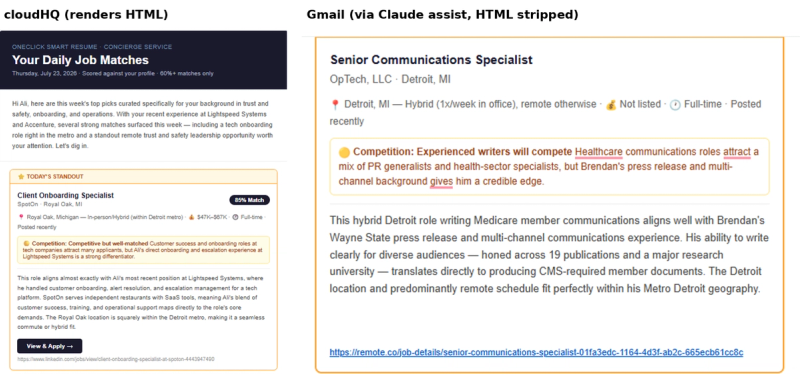
- The Job Digest goes out every morning without manual reformatting to all of my clients.
- In the last month, I have had zero formatting bugs across roughly 60 sends.
- Fewer "something looks off" messages from clients, since the Render matches the design every time.
Lessons Learned
Sending the HTML email in Gmail is a last-mile problem; the template can be perfect and still break at the point where it's actually pasted and sent to my client. Testing that last step early, with real production HTML, is what caught issues before clients ever saw them. And made my clients happy and cloudHQ is one app that I am happy to use daily.
FAQ
Does the cloudHQ Gmail HTML Editor work with tables and inline CSS?
Yes that's basically the whole point. My HTML email template in Gmail uses a table-based layout with inline CSS, and it renders exactly as built no stripped styles, no collapsed layout.
Do I need to inline my CSS before pasting?
Yes. Gmail strips <style> blocks in a lot of contexts, so inline CSS in Gmail is the safe default. My digest generator exports the template already inlined, so there's no extra step on my end.
Can I use this for more than one client a day?
That's exactly how I use it. I paste one HTML digest per client, render/preview each one, then send. It's a few extra clicks per client, but it's still faster than any workaround I tried before.
What happens if I skip the test send?
Don't skip it. I test-send to my own inbox first every time, it has caught small rendering issues before a client ever sees them, and it's cheap insurance for a paying client relationship.
Does this work on mobile Gmail, too?
I check that in the render/preview step before sending the box layout and job cards need to hold up on a phone screen since that's where a lot of my clients actually open the digest.
Visit cloudHQ
Get the HTML Editor by cloudHQ
cloudHQ chrome extension
AI Disclaimer: This post was written from my own experience; I used Grammarly for spelling and grammar review.